

Access, prices and publishing
Two questions decide what a learner can do with a course: can they see it (the catalogue and the course page) and can they open it (the lessons). Status and visibility answer the first; access answers the second.
Course status
Section titled “Course status”Set the status on the course’s Attributes tab.
| Status | Effect |
|---|---|
| Draft | Only in the admin panel. Learners cannot see or open it. |
| Published | Visible in the catalogue; people with access can take it. Publishing sends the “course published” event. |
published_unactivated |
Counts as published, and a daily job switches it to Published once Active from has passed (and Active to has not). In the English admin it is currently labelled “Opublikowany nieaktywny”. |
| Archived | Hidden from learners; set it back to Published to reopen the course. |
Whether a published course shows up for people who are not signed in depends on the platform’s
visibility setting (platform_visibility, set by an administrator). With public (the default) new
courses are listed for everyone; with registered, new courses are only visible to people who have
access to them.
Public courses
Section titled “Public courses”When an administrator enables the Is public switch for course forms, you can mark a course as public on the Attributes tab. A course that is both public and published can be opened by anyone, without an account and without being granted access.
Free preview topics
Section titled “Free preview topics”Topics marked Able to preview open for everyone who can see the course, so learners can try it before they get access. See Lessons and topics.
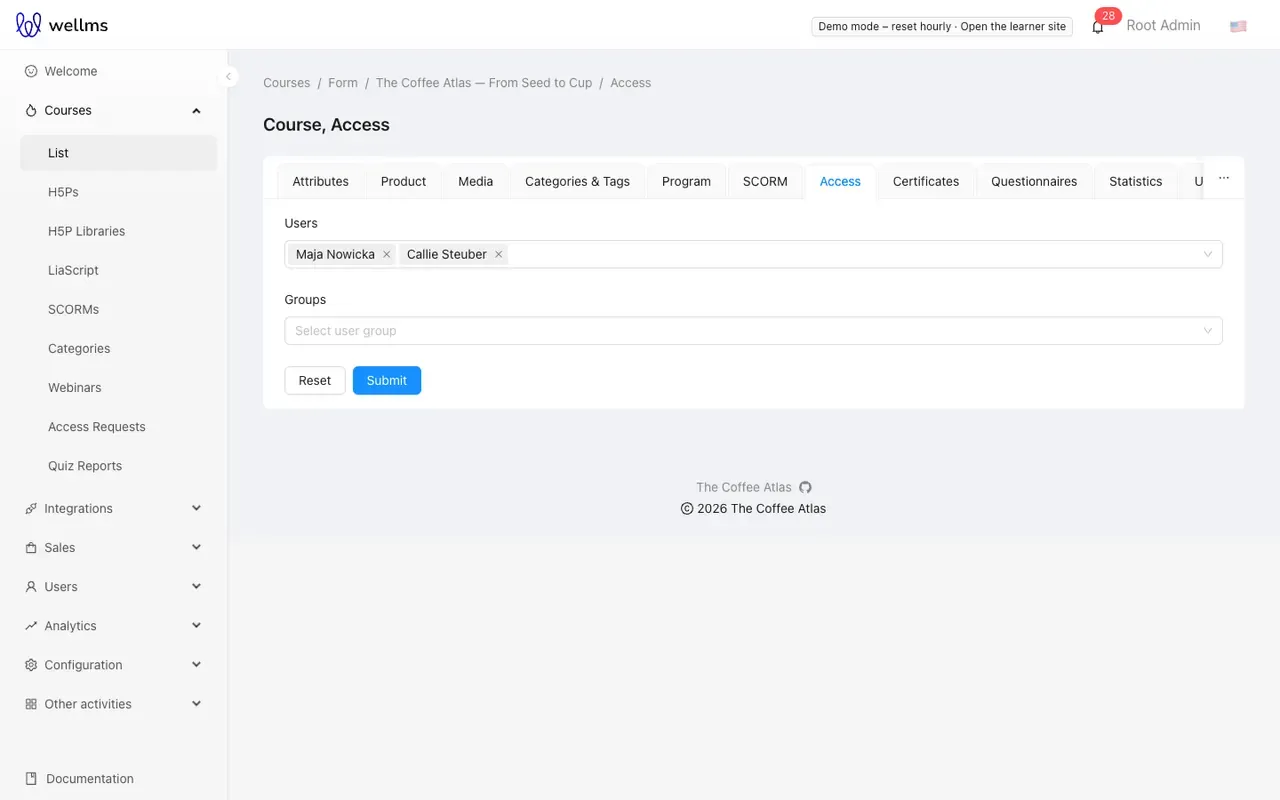
Give access to users and groups
Section titled “Give access to users and groups”- Open the course editor’s Access tab (
/courses/list/<id>/access). - Add people under Users and whole groups under Groups.
- Click Submit. The lists you submit replace the previous ones.
Removing a user or a group takes their access away. Adding and removing access sends the course assigned/unassigned notifications, which an administrator can turn into e-mails in Notifications.
Access requests
Section titled “Access requests”Learners can ask for access to a course and add a message. The requests appear in
Courses → Access Requests (/courses/access) with the course, the learner, the date, the status
(pending or approved) and the extra data the learner sent.
- Approve grants the learner access to the course.
- Delete removes the request.
People with the approval permission are notified about new requests. An administrator can switch on
automatic approval in the settings (auto_accept_access_request), which grants access as soon as a
request arrives; use it for free courses that only require a sign-up.
The request button is part of the legacy learner app; the reference front does not offer it yet.
Invite people without an account
Section titled “Invite people without an account”The Users Attached without Account tab (/courses/list/<id>/user_submission) takes e-mail
addresses of people who do not have an account yet. Each person receives an e-mail with instructions;
once they create an account with that address, they get access to the course.
The invitation e-mail uses a notification template that an administrator has to set up; see Notifications.
Prices and products
Section titled “Prices and products”To sell a course, open its Product tab (shown with the sales permission). It is the same product form as Sales → Products: name, price and tax, whether the product can be purchased, limits per user and in total, related products and the product’s media, categories and tags. Learners who buy the product get access to the course once the payment is confirmed.