

Lessons and topics
A course is a tree: lessons contain topics and, optionally, other lessons. A topic is one
learning item with exactly one type (text, video, quiz and so on). Build the tree in the course editor’s
Program tab (/courses/list/<id>/program).
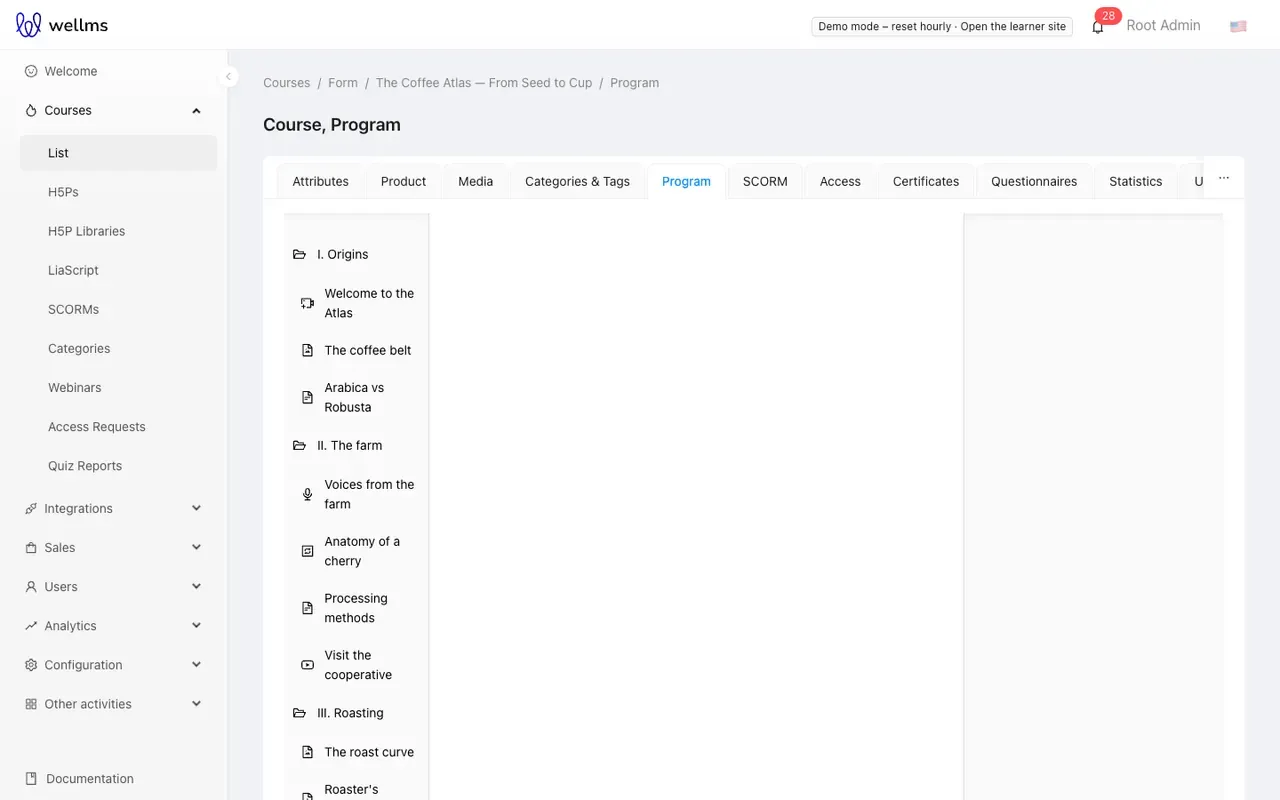
Add a lesson
Section titled “Add a lesson”- Open the Program tab and click Add new lesson.
- Fill in Title (required), Summary, Duration and Active?. Optionally set Active from and Active to to limit when the lesson is available, and a Parent lesson to nest it.
- Click Create.
To add a lesson inside another lesson, hover the parent lesson, click the + button (Add new topic) and choose the lesson icon at the top of the list.
Add a topic
Section titled “Add a topic”- Hover the lesson and click + (Add new topic).
- Pick a type: Rich text, OEmbed, Audio, Video, H5P, Image, PDF, SCORM, LiaScript, Interactive, Layout, External tool (LTI), Project or Quiz.
- Fill in the type-specific content in the middle column and the common fields in the right column.
- Click Save.
Only the types that are installed and not switched off appear in the list. An administrator can switch
off any type platform-wide in the settings (disableTopicType-<type>). Two content formats have no
entry in this menu: cmi5 (no admin form yet) and Adapt
(uploaded as a SCORM package).
For file types (audio, video, image, PDF) the upload itself saves the topic. Quiz and project topics can be saved without content; questions are added after the first save.
Fields every topic has
Section titled “Fields every topic has”| Field | Effect |
|---|---|
| Title (required) | Shown in the program and in the player. |
| Duration | Free text, for example “5 min”; the reference front converts it to minutes for the course outline. |
| Parent lesson | Moves the topic to another lesson. |
| Description → Open editor | Three Markdown fields: Introduction, Description and Summary. The reference front shows the description below the topic content. |
| Active? | Inactive topics are not part of the course. A course is finished when every active topic is complete. |
| Able to preview | A free preview: the topic opens on the course page for people without access to the course. |
Can be omitted (can_skip) |
In the legacy learner app, lets the learner move to the next topic without completing types that otherwise block the Next button; moving on marks the topic complete. The reference front does not use it. New topics start with it switched on. |
| JSON Metadata | Extra data for rendering. Video processing writes its status here, and the reference front reads video chapters from it (see Video). Leave it alone unless a guide tells you otherwise. |
Below the common fields of a saved topic is File resources: files attached to the topic that learners can download.
The bottom bar has Cancel, Clone (copies a saved topic), Save and Delete.
Reorder and nest
Section titled “Reorder and nest”Drag lessons and topics in the tree to change their order or move them to another lesson. The new order is saved straight away. A lesson that has not been created yet cannot be moved.
Administrators can limit nesting with two settings: the maximum depth of nested lessons
(maxLessonsNestingInProgram) and the minimum depth at which topics may sit
(minTopicNestingInProgram). A move that breaks these limits is refused with a message.
Completion
Section titled “Completion”The platform records a status per topic and learner. When every active topic of the course is complete, the course is marked finished: this is what issues a certificate and the “course finished” notifications.
In the reference front a learner with access can always press Mark as complete. In addition:
- text-like topics (rich text, image, PDF, embeds) complete when the reader scrolls to the end of the content, after a few seconds on the page;
- a video completes when it plays to the end, an H5P topic when the content reports completion, and a quiz when the learner passes it;
- a layout completes when the reader scrolls to the end, or with the first checked answer of its practice activity (Layouts);
- SCORM, LiaScript, Interactive and external-tool topics are completed by the platform when the content or the tool reports completion (details on their pages).
Each topic type page lists the specifics.
Preview your course
Section titled “Preview your course”There is no separate preview mode in the admin panel. To check what learners see, open the course in
the learner front (/courses/<id>, then /learn/<course id>/<topic id>) with an account that has access
to the course. See the learner guide.