

Quizzes
A Quiz topic (GiftQuiz) is a test with its own attempts, time limit and pass score. Each question
is stored in the GIFT format from Moodle, but you do not have to write GIFT:
the question editor builds it from a form.
Create a quiz
Section titled “Create a quiz”- In the program, add a topic and choose Quiz.
- Set the quiz options:
- Max attempts: how many attempts a learner gets. Empty means unlimited.
- Max execution time: the time limit of one attempt, in minutes. The server enforces the deadline
itself (answers after it are rejected), on every queue driver, including
sync. - Min pass score: the score needed to pass, in percent (0 to 100).
- Save the topic. Questions can only be added after the first save; until then the form says “Create this Topic before adding questions”.
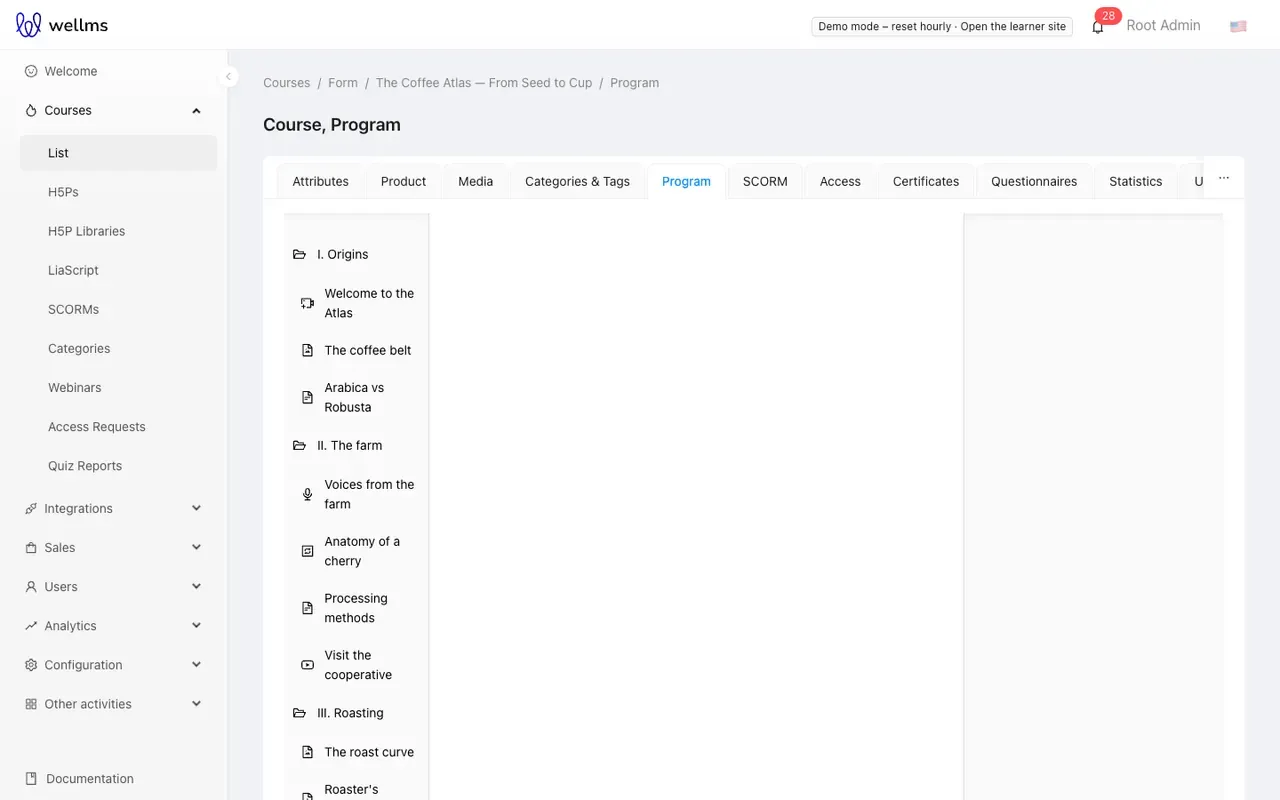
- Click Add new question, choose the type, fill in the form and the Score (points for the question), and submit. Repeat for each question.
Question types
Section titled “Question types”| Type in the editor | What the learner does | Graded |
|---|---|---|
| Multiple choice | Picks one answer | Automatically: full score for the right answer, otherwise 0 |
| Multiple choice with multiple right answers | Picks several answers | Automatically: each answer carries a percentage of the score |
| True & False | Picks true or false | Automatically |
| Short answers | Types a word or phrase | Automatically, exact match with one of the accepted answers (case-sensitive) |
| Matching | Matches items of two lists | Automatically, all pairs right or 0 |
| Numerical question | Types a number | Automatically, with an error margin |
| Essay | Writes a free answer | Manually by a tutor in Quiz Reports |
| Description | Nothing: text shown between questions | Not graded, no score |
Answers can carry feedback that is shown to the learner. The exact rules, including partial credit, are in the GIFT syntax reference.
Manage questions
Section titled “Manage questions”The question table shows each question’s type and text:
- drag the handle in the Sort column to change the order;
- Edit opens the question in the form;
- Delete removes it at once.
Import and export questions
Section titled “Import and export questions”- Export opens a list of the quiz’s questions; select the ones you want and confirm to download
them as an
.xlsxfile with the columns Question (GIFT text), Type and Score. - Import questions uploads such an
.xlsxfile into this quiz. Every row needs a Question in GIFT format and a whole-number Score of 0 or more; the type is detected from the GIFT text. A file exported from one quiz can be imported into another, which is the quickest way to copy questions.
Randomising the order
Section titled “Randomising the order”Quizzes have a randomize order option: when it is on, both the questions and the answer options are
shuffled per attempt (the same attempt keeps its order after a refresh). The admin form does not show
this switch yet; it can be set through the API (randomize_order on /api/admin/gift-quizes/{id}).
Matching questions always shuffle their two columns.
What happens during an attempt
Section titled “What happens during an attempt”- Starting the quiz opens an attempt; an unfinished attempt is resumed instead of starting a new one.
- When Max attempts is used up, no new attempt can be started.
- An attempt closes automatically when its time is up. Without Max execution time it closes after
the platform default, the max_quiz_time setting (
ulams_gift_quiz.max_quiz_time, in minutes, editable by admins in the settings; 120 when nobody set it). - Results are shown when the attempt ends. In the reference front, passing the quiz completes the topic.
Quiz reports
Section titled “Quiz reports”Courses → Quiz Reports (/courses/quiz-reports) lists every attempt. Filter by date range, course
and student. Each row shows the quiz, the student, the result and maximum score, the start and end time
(or “uncompleted”).
Open Details (/courses/quiz-reports/<id>) to see every question with the learner’s answer. To
grade an essay, or to correct any automatic score, open the question, click the edit button and enter
the learner’s score. The attempt’s total is updated with it.