

Course player
Needs review
Needs review: Completion rules per topic type (audio has no automatic completion; SCORM completion is server-side through the SCO-scoped token) should be checked end to end in a browser.
The player lives under /learn/<courseId>. Every player page needs a session: without one the
server signs the visitor in as the demo student (see signing in), and
if that is not possible it redirects to /login.
Opening a course
Section titled “Opening a course”/learn/<courseId> does not render anything itself. It redirects to:
- the first topic that is not completed, for a learner with access;
- the first free-preview topic, for a learner without access;
- the course page if the program cannot be loaded or has no topics.
“Start learning” and “Continue learning” on the course page, and the call to action on the landing page, link here or straight to a topic.
The topic page
Section titled “The topic page”/learn/<courseId>/<topicId> has four parts:
- Top bar. A link back to the course page with the course title, the course progress bar (percentage of completed topics) and a home link.
- Program. A collapsible tree of lessons and topics (“Program”, with the topic’s position,
e.g.
4 / 19). Each topic shows its status (done, current, open or locked) and a format icon. It is open by default on wide screens. - Content. The lesson name (chapter, module or mission, depending on the academy), the topic title, its format and duration, “Free preview” and “Completed” tags, the introduction, the topic itself, the description and a “Downloads” list of the topic’s resources.
- Bottom bar. “Previous”, “Mark as complete” and “Next” (or “Finish” on the last topic).
The keys
jor]go to the next topic,kor[to the previous one.
Learners can open any topic from the tree; the player does not enforce an order.
How each topic type renders
Section titled “How each topic type renders”| Topic type | What the learner sees |
|---|---|
| Rich text | The article rendered from Markdown on the server, with tables, code and maths (KaTeX to MathML). The Coffee Atlas adds a drop cap; Night Sky uses larger type |
| Video | A video player that loads nothing until play is pressed. HLS plays natively in Safari and through hls.js elsewhere. Chapter buttons, when the topic defines chapters |
| Audio | A native audio player with the length |
| Image | The image with the topic summary as caption and alt text |
| An embedded PDF with a “Download” button | |
| Embed (OEmbed) | The embedded external media, e.g. a YouTube video |
| H5P | The H5P content in a frame served by the H5P service through the frontend’s same-origin /h5p/ proxy, themed to match the academy |
| SCORM | The package in an isolated frame on the tenant’s content origin. Without a content-origin launch it falls back to the API’s player, or, when the package files cannot be served, to a card with a link to open the player in a new tab |
| LiaScript | The LiaScript course in a frame on the content origin, with its number of sections. It completes when the learner reaches the last section |
| External tool (LTI 1.3) | The tool in a frame, or, for tools set to open in a window, a card with “Open the activity”. Scores come back from the tool through LTI Assignment and Grade Services |
| GIFT quiz | The quiz runner, see below |
| Project | The assignment brief, and a card saying that file upload is not part of the reference frontend yet |
| cmi5 | A card describing the tracked activity. Launching cmi5 activities is not implemented in the reference frontend yet |
| Layout | The lesson built from learning components: timelines, flip cards, steps, callouts, code listings, comparison tables and practice activities, see Layouts. A document that cannot be rendered shows its Markdown version instead |
Any other topic type shows an “Unsupported topic type” notice. Adapt courses imported as SCORM packages play as SCORM. If the API returns a topic without its content, the player shows “This topic could not be loaded” with a link back to the course.
How authors create each type is described in the content creators guide.
Quizzes
Section titled “Quizzes”GIFT quizzes run in the page through the quiz-attempts API:
- Starting the quiz creates an attempt, or resumes an open one with its saved answers.
- One question at a time, with a question navigator. All eight question types are supported: multiple choice, multiple right answers, true/false, short answer, matching, numerical, essay and description blocks.
- Answers are saved as the learner goes. A timer counts down when the quiz has a time limit and ends the attempt at zero.
- At the end the learner sees the score, whether they passed, and per-question feedback. Essay answers are marked as waiting for tutor review.
- “New attempt” starts again while attempts remain. With no attempts left the quiz says “No attempts left for this quiz.”
Passing the quiz completes the topic.
Progress and completion
Section titled “Progress and completion”While a topic page is open and visible, the player pings the API every minute to record time on task. A topic is marked complete in one of these ways:
| Topic type | Completed when |
|---|---|
| Rich text, image, PDF, embed | The learner scrolls to the end of the content and has been on the page for at least four seconds, or presses “Mark as complete” |
| Video | The video plays to the end, or “Mark as complete” |
| H5P | The content sends a completing xAPI statement (every H5P xAPI statement is also stored), or “Mark as complete” |
| Quiz | The learner passes, or “Mark as complete” |
| Layout | The learner scrolls to the end and has been on the page for at least four seconds. When the layout has a practice activity, the first checked answer (or “I have tried it”) completes the topic instead. “Mark as complete” always works |
| Audio, SCORM, LiaScript, LTI, cmi5, project | “Mark as complete”. LiaScript and SCORM packages also report completion to the API themselves |
Completing a topic updates the tree and the progress bar without reloading the page. Progress belongs to the signed-in user; on demo tenants that is the shared demo student, and it is wiped by the hourly reset.
When the author updates a lesson
Section titled “When the author updates a lesson”Courses built with the Course Builder can stay in sync with their sources (see Build a course with AI). When an author applies an update, nothing you have done changes: completion, scores and attempts stay as they are. The player only tells you what is different, above the lesson content. Each notice names its status in words and is a labelled region, so a screen reader reads it as a heading followed by the text.
- Updated since you completed it, 9 October 2026. The lesson changed after you completed it. Below it is “What changed:”, the note the author wrote (plain text, up to 500 characters). If you had started the lesson but not completed it, the notice reads “This lesson was updated after you started it”. Mark as reviewed closes the notice for good; it does not touch your progress. The button needs scripts; without them the notice stays visible.
- One question was corrected. On a quiz where the correct answer of a question changed: “Your previous score stays on record. Retake it to update your result.” A Go to the quiz link jumps to the quiz. You get one extra attempt even if you used all of them, and the notice goes away by itself when you retake the quiz.
- The source of this lesson changed on 1 October 2026; an update is under review. Shown only when the author turned this on for the course. It names no details of the change.
The notices are fetched with your own session; if the API has none, or does not know the feature, the page looks as before.
Preview mode
Section titled “Preview mode”A signed-in learner without access to the course (the API answers 403 for the program) can still open the free-preview topics. The player then shows “Preview mode: this demo account has no access to the full course, so only free topics open.”, marks the other topics as locked, and hides “Mark as complete”. Opening a locked topic shows “Locked in this demo account”.
Finish page
Section titled “Finish page”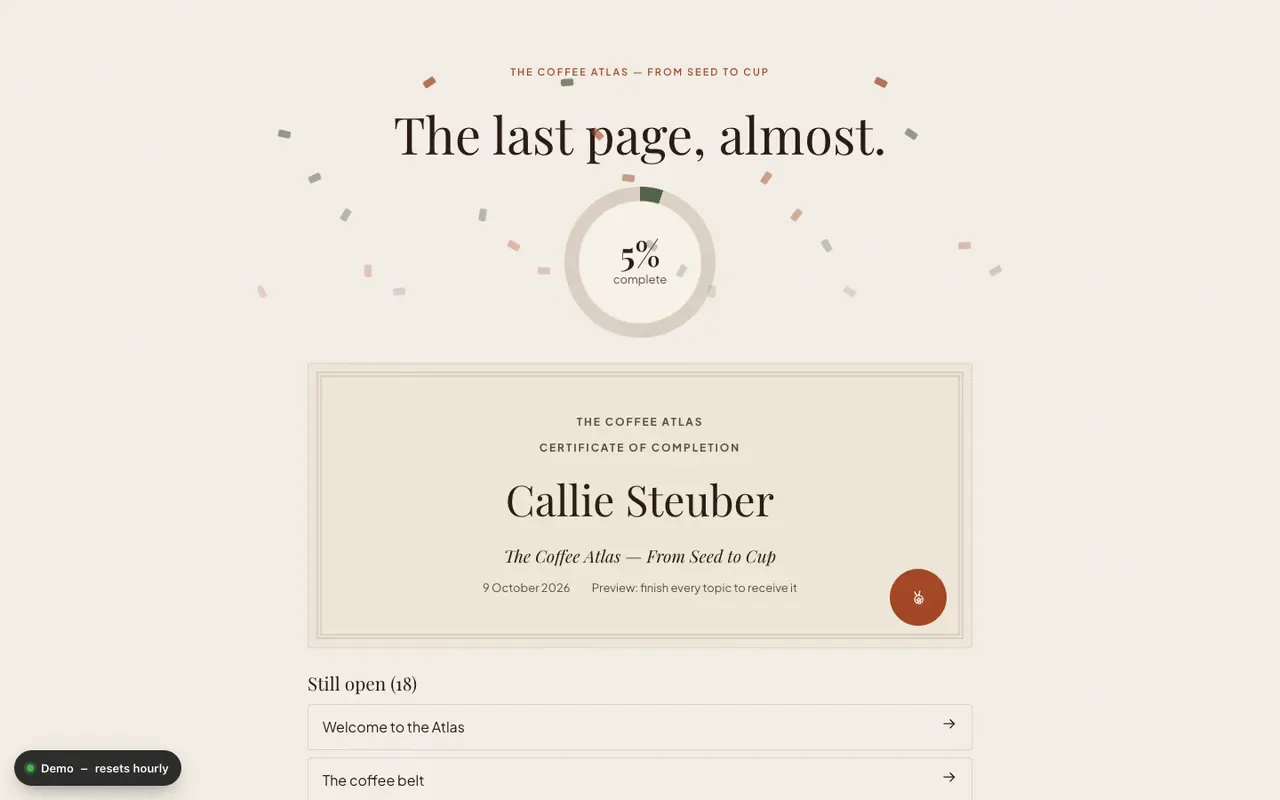
“Finish” on the last topic opens /learn/<courseId>/finish. It shows:
- a headline in the academy’s voice, different for finished and unfinished courses;
- a ring with the completion percentage;
- a certificate preview with the tenant name, “Certificate of completion”, the learner’s name, the course title and today’s date, marked “Issued” when every topic is done and “Preview: finish every topic to receive it” otherwise;
- up to six topics that are still open, with links;
- “Back to the course” and “Home”.