

Create a course
The course list
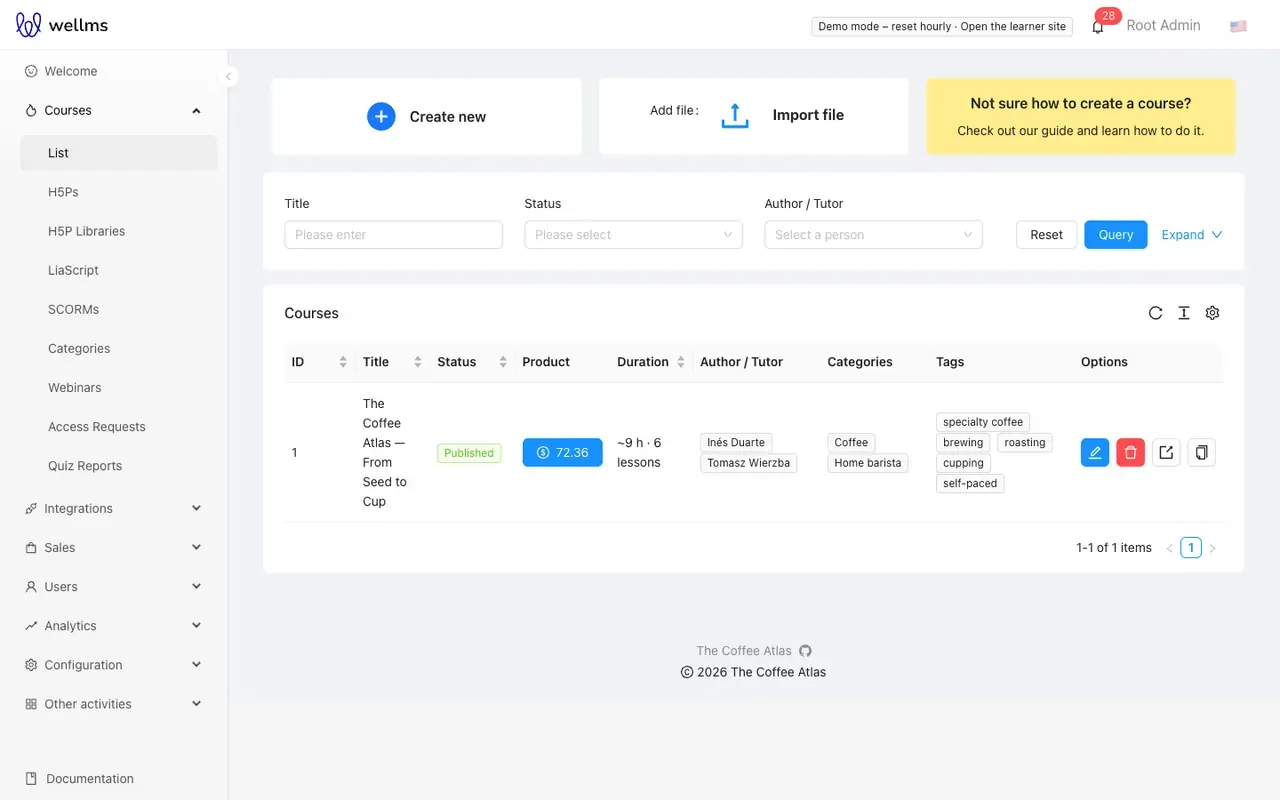
Section titled “The course list”Open Courses → List (/courses/list). The table can be filtered by title, status, category, tag,
author and active state, and each row has these actions:
- Edit opens the course editor.
- Delete removes the course after a confirmation.
- Export downloads the course as a ZIP file (needs the export permission). See Import and export.
- Clone creates a copy of the course (needs the clone permission).
Above the table are Create new and, with the import permission, Import file (a course ZIP).
Create the course
Section titled “Create the course”- Click Create new. The form opens at
/courses/list/newwith only the Attributes tab. - Fill in at least Title and Status (both required) and save.
- A dialog offers Create modules, which takes you to the Program tab to add lessons, or Go to course page, which stays on the attributes. All other tabs appear once the course exists.
Attributes tab
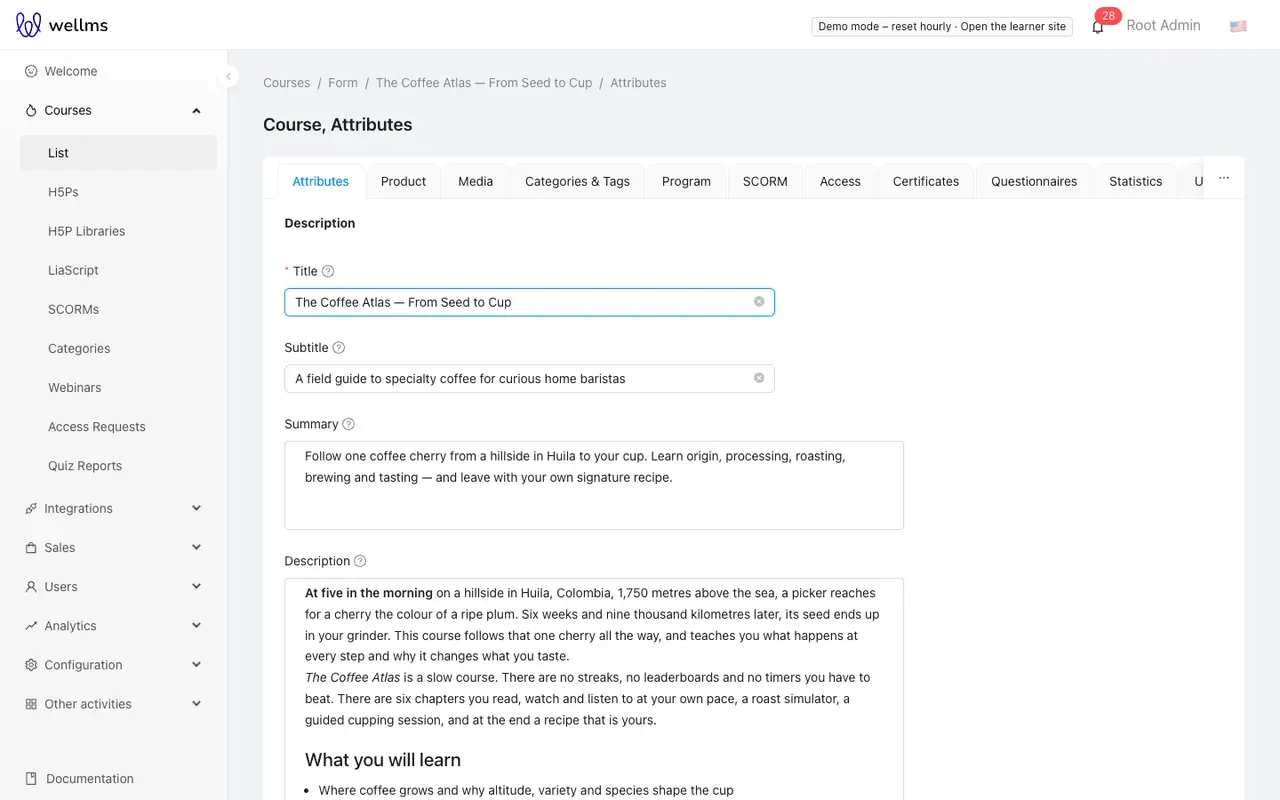
Section titled “Attributes tab”| Field | What it does |
|---|---|
| Title (required), Subtitle | Shown in the catalogue and on the course page. |
| Summary, Description | Rich text, stored as Markdown. Type / in the editor for blocks: upload an image, audio, video or PDF, link, checklist, bulleted and ordered lists, table, quote, code block, math (LaTeX), headings. |
| Active from, Active to | Dates the course is active. Active to can only be set after Active from, and must be later. |
| Duration | Free text such as “3 hours”. |
| Hours to complete | A number. |
| Level, Language | Free-text level and the course language (from the platform’s languages). |
| Status (required) | Draft, Published, Archived or published_unactivated. See Access, prices and publishing. |
| Target group | Free text, for example “Baristas”. |
| Author / Tutor | One or more users shown as the course authors. |
| Is public | Only shown when an administrator enables it in the settings. A public, published course can be opened by anyone, without an account. |
| Additional fields | A JSON editor for extra course fields defined by the platform. |
The other tabs
Section titled “The other tabs”Each tab has its own address, /courses/list/<id>/<tab>.
| Tab (key) | Purpose |
|---|---|
Product (product) |
Turn the course into a product with a price. Shown only with the sales permission. See Access, prices and publishing. |
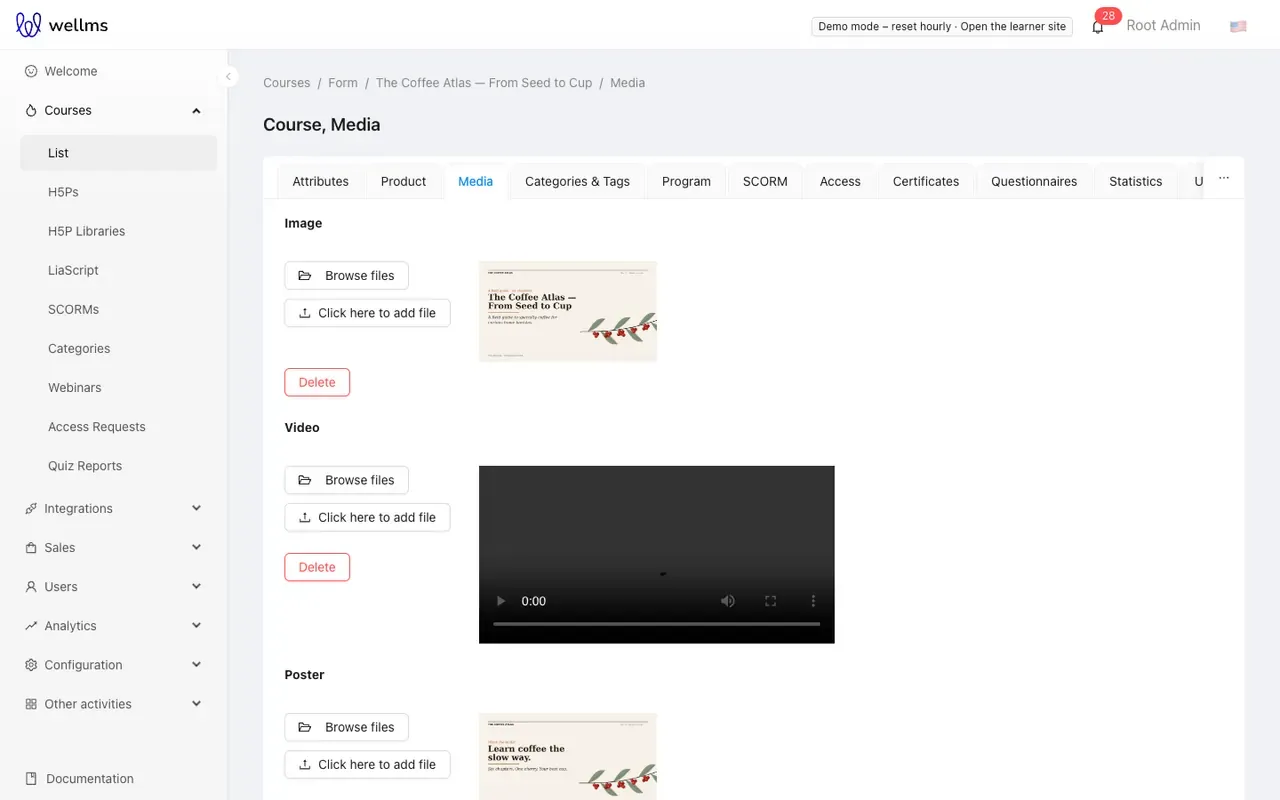
Media (media) |
Course image, promo video and poster. Upload a large enough original: the legacy learner app requests resized, cached variants from the image service (/api/images/img). |
Categories & Tags (categories) |
Pick categories from the tree and type tags. |
Program (program) |
Lessons and topics. See Lessons and topics. |
SCORM (scorm) |
Use one SCORM package as the whole course. See SCORM. |
Access (access) |
Users and groups with access. See Access, prices and publishing. |
Certificates (certificates) |
Certificate templates for this course and the certificates issued. See Certificates. |
Questionnaires (questionnaires) |
Attach a questionnaire (survey) to the course. |
Statistics (statistics) |
Progress and time per learner, completion dates, charts. |
Users Attached without Account (user_submission) |
Invite people by e-mail before they have an account. See Access, prices and publishing. |
User projects (user_projects) |
Files learners handed in for project topics. |
An administrator can hide the Statistics, Users Attached without Account and User projects tabs platform-wide in the settings.
Where learners see it
Section titled “Where learners see it”The course page in the learner front is /courses/<id> and lists the lessons and topics; topics
marked as free preview open without access. See the learner guide.